Capture a horizontal video and a separate vertical crop from the same shot, ready for different platforms.
Built for moments that do not happen twice
Record once. Deliver twice.
DualCrop is a camera app built for people who record real life as it happens: news crews, photographers, bloggers, field producers, creators, and anyone who knows the moment will not happen twice.
A field camera for a vertical world.
I designed DualCrop from a working photographer’s point of view. In the field, you often need two versions of the same moment: a clean horizontal frame for broadcast, archive, YouTube, or traditional delivery, and a vertical crop for phones, reels, shorts, and social platforms.
Normally that means shooting twice, reframing later, or losing time in the edit. DualCrop captures both at once.
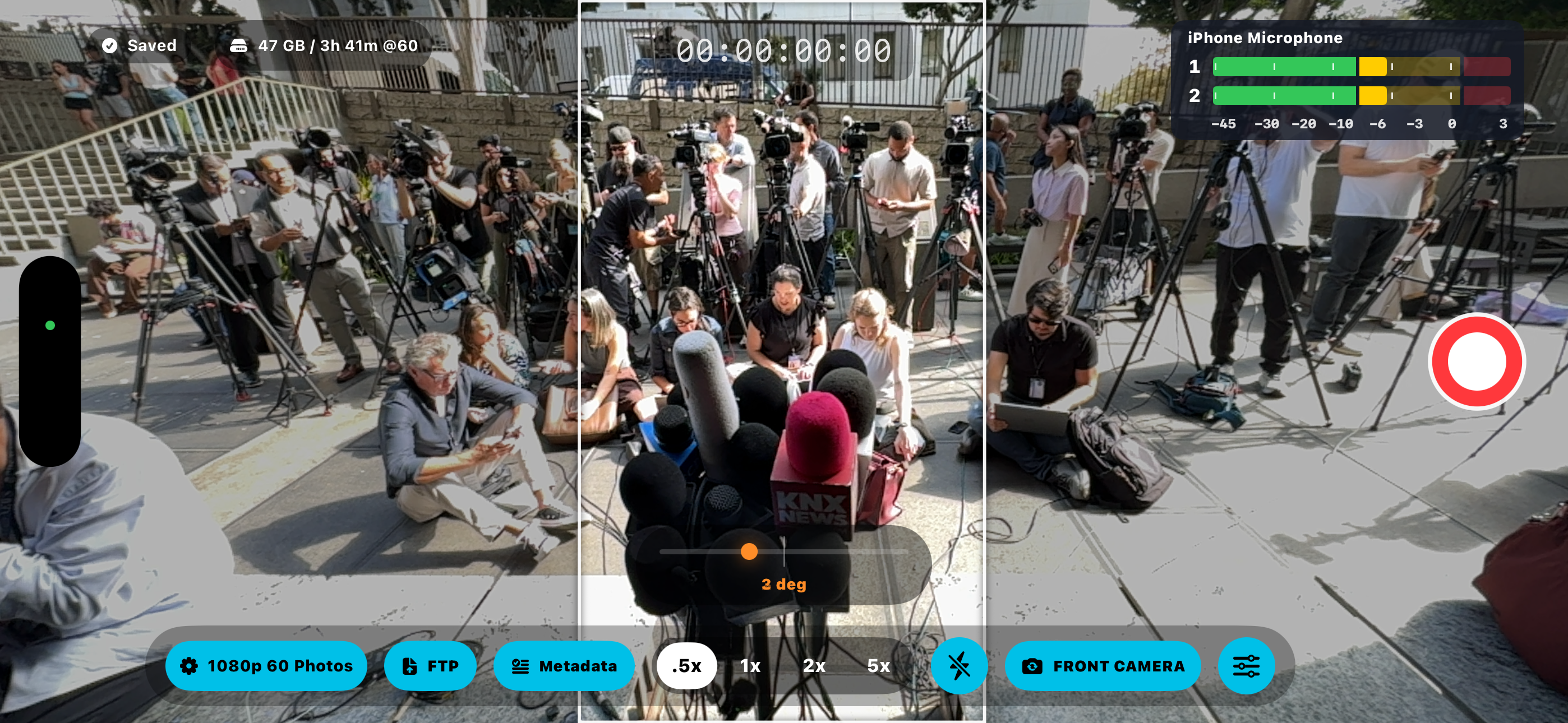
While you record, DualCrop creates a full horizontal version and a separate vertical crop from the same camera view. The vertical frame can follow a tapped subject, face, or object, helping keep the important action centered while you keep shooting naturally. You can also switch to manual crop control when you want to place the vertical frame exactly where you want it.
DualCrop is made for fast-moving reality: breaking news, interviews, street scenes, live events, travel, documentary moments, behind-the-scenes work, and everyday content where speed matters.
Less setup. More moment.
Tap the subject that matters. DualCrop makes that selection the priority and keeps the vertical frame working around it.
Switch from auto follow to manual crop control when you want to place the vertical frame exactly where you want it.
Quick User Guide
- Record Two Formats At Once: DualCrop records a horizontal video and a vertical crop video from the same shot, so you can capture once and deliver for multiple platforms.
- Use Auto Follow: In Auto mode, tap a face, person, object, or subject on screen. The cyan selection box locks onto your choice, and the vertical crop frame follows to keep it centered.
- Tap Overrides Auto: If the app is searching automatically, your tap becomes the priority. The subject you tap is the subject DualCrop follows.
- Manual Crop Mode: Press and hold inside the crop frame to open the Crop Shape menu. Choose Manual to move the vertical crop box yourself with your finger. Tap the Manual pill inside the crop frame to return to the menu and switch back to Auto.
- Crop Shape Options: Choose different vertical crop formats, including 9:16, 2:3, 4:5, and 1:1, depending on where the final video or still image will be used.
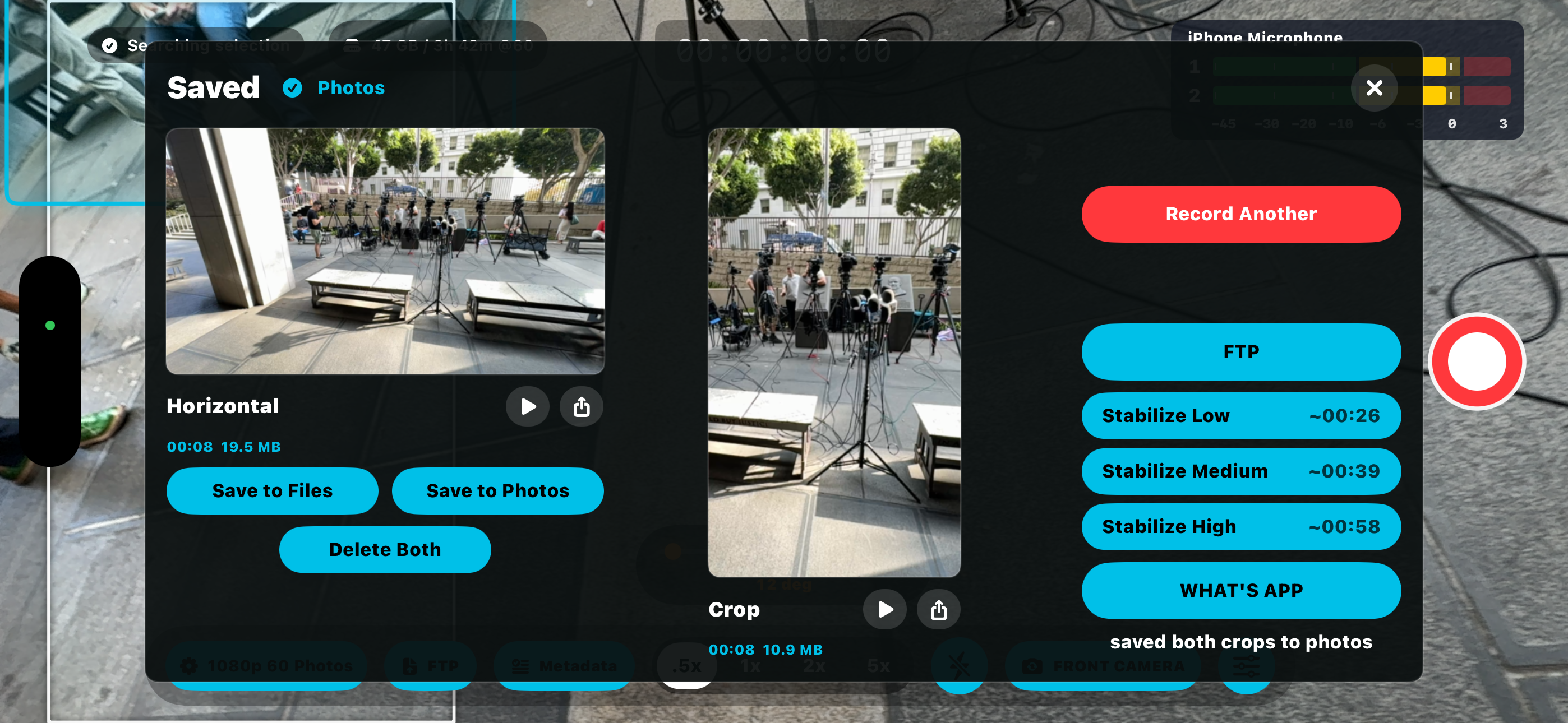
- Video Or Stills: Use the Tools menu to choose Video or Stills. In Stills mode, DualCrop saves both a horizontal image and a crop image.
- Save To Photos Or Files: After recording or taking stills, the save screen lets you send both versions to Photos or Files.
- FTP / FTPS Upload: Add and save FTP/FTPS destinations, then upload from Photos. DualCrop is designed so the horizontal and crop files travel together.
- Camera / Selfie Camera: Switch between the main camera and selfie camera depending on the shot. Selfie mode is useful for presenter pieces, reports, and direct-to-camera content.
- Best Use: Frame the full scene horizontally, then let the vertical crop follow the most important subject. For controlled shots, use Manual. For live action, tap the subject and keep shooting.
See The App
DualCrop is built as a working camera, not a complicated editing step. Frame the full scene, tap the subject, and capture horizontal and vertical versions together.